2025.38.8
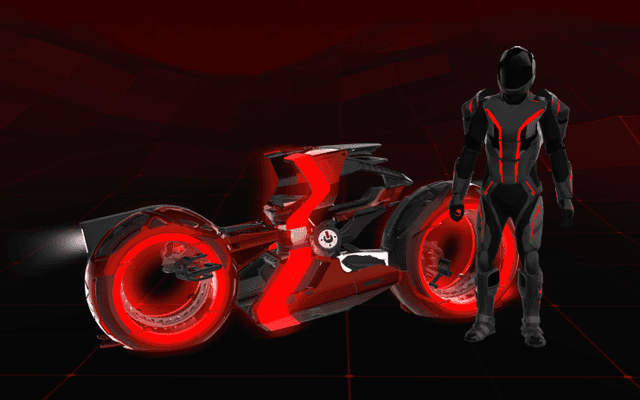
트론 모드
S
3
X
Y
CT
안녕하세요, 프로그램. 차량을 라이트 사이클(Light Cycle)로 변신시키세요.
앱 런처 > 토이박스 > 트론으로 이동하세요.
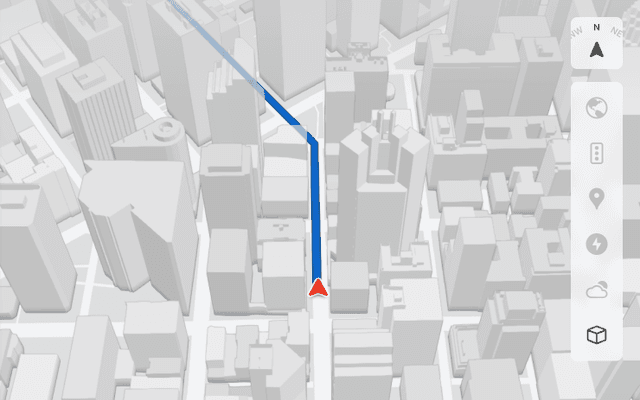
3D 빌딩
S
3
X
Y
CT
이제 3D 뷰를 통해 건물과 도시 경관을 더욱 자세히 볼 수 있습니다. 활성화하려면 지도 보기(Map View)로 전환한 후 3D 아이콘을 탭하세요.
프리미엄 커넥티비티(Premium Connectivity)가 필요합니다.
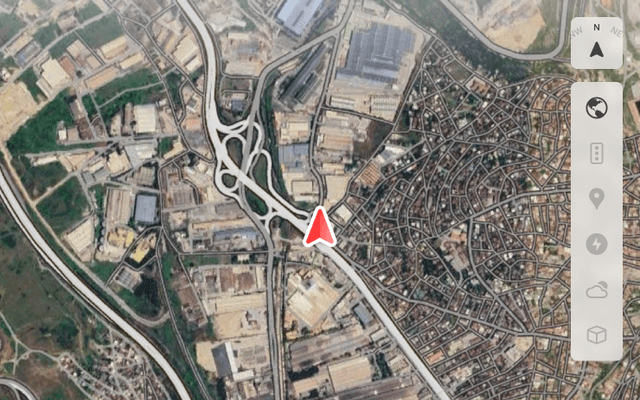
위성 보기
S
3
X
Y
CT
이제 지도에서 지구본 아이콘을 탭하여 위성 보기(Satellite View)로 전환할 수 있습니다.

대시캠 뷰어 업데이트
S
3
X
Y
CT
이제 대시캠 이벤트 세부 정보에 도로명(사용 가능한 경우)이 포함되어 녹화된 이벤트를 더 쉽게 구별할 수 있습니다. 또한 모바일 대시캠 뷰어(Mobile Dashcam Viewer)는 이제 더 높은 해상도로 스트리밍 및 다운로드됩니다. Tesla 앱 버전 4.49.5 이상이 필요합니다.
편집자 참고: 레거시 Model S 및 Model X는 대시캠 이벤트에서 도로명 세부 정보를 수신하지만, 모바일 대시캠 뷰어(Mobile Dashcam Viewer)는 포함되지 않습니다.
측면 카메라 녹화
CT
이제 차량의 측면 카메라(B-필러)가 대시캠(Dashcam) 및 센트리(Sentry) 클립 모두에 녹화됩니다.

새로운 스크롤 휠 기능
S
3
X
Y
CT
왼쪽 스크롤 휠에 생화학 무기 방어 모드(Bioweapon Defense Mode), 내비게이션 음소거(Mute Navigation), 음악 조명 동기화(Music Light Sync) 등 다양한 차량 제어 기능에 빠르게 접근할 수 있는 새로운 옵션이 포함되어 있습니다(차량에서 사용 가능한 경우).
왼쪽 스크롤 휠을 길게 눌러 메뉴를 여세요.
그록 (베타)
S
3
X
Y
CT
이제 xAI가 개발한 지능형 비서인 그록(Grok)과 대화할 수 있습니다. 스토리텔러(Storyteller)부터 언힌지드(Unhinged)까지 다양한 그록의 음성과 개성을 선택하세요. 시작하려면 앱 런처 > 그록으로 이동하거나, 스티어링 휠의 음성 버튼을 길게 누르세요.
프리미엄 커넥티비티(Premium Connectivity) 또는 Wi-Fi 연결이 필요합니다. 대화는 테슬라에 익명으로 처리되며 차량과 연결되지 않습니다.
참고: 그록(Grok)은 현재 베타 버전이며 차량에 명령을 내리지 않습니다. 기존 음성 명령은 변경되지 않습니다.

온보딩 가이드
3
Y
온보딩 가이드(Onboarding Guide)는 테슬라에 익숙해지도록 돕습니다. 운전자 설정 조정, 터치스크린 사용, 조명, 와이퍼 및 오토파일럿(Autopilot) 기능 제어 등 다양한 기능을 다룹니다.
앱 런처 > 설명서 > 내 테슬라 알아보기로 이동하세요.
사소한 업데이트
S
3
X
Y
CT
- 이제 대시캠 이벤트 세부 정보에 도로명(사용 가능한 경우)이 포함되어 녹화된 이벤트를 더 쉽게 구별할 수 있습니다.
- Apple Music은 폴더가 있는 정리된 재생 목록 보기, 확장된 아티스트 페이지, 그리고 청취 기록을 더 많이 보여주는 최근 재생(Recently Played) 섹션을 제공합니다.
- 이제 Tesla 앱 알림을 사용하여 미디어에 로그인하여 더 빠르고 원활한 경험을 할 수 있습니다. (레거시 Model S 및 Model X에서는 사용할 수 없음)
- 이제 운전자 프로필을 선택하기 전에 휴대폰 키가 필요한지 여부를 선택할 수 있습니다. 운전자 프로필 설정(Driver Profile Settings) > 프로필에 휴대폰 키 필요(Require Phone Key for Profile)로 이동하세요. (레거시 Model S 및 Model X에서는 사용할 수 없음)
- 이 업데이트에는 중요한 보안 수정 및 개선 사항이 포함되어 있습니다.

Santa Mode
S
X
Tesla has added Santa Mode to 2026 Model S and Model X vehicles. These cars use the Unreal Engine and did not include Santa Mode until this update. Santa Mode was noticeably absent from the Toybox, and when users tried to enable the feature through voice commands, the system would say that Santa Mode is not available and will be enabled in a future update.

New FSD Guide
S
3
X
Y
CT
When a user activates FSD from the Controls > Autopilot menu, Tesla will now present a one-screen guide that introduces the user to FSD.
The guide includes the same disclaimer as previous updates and now also includes an image of the steering wheel controls for FSD, letting the user know how to switch FSD Profiles and set the maximum speed (for FSD V13 and below).
The image used is specific to the vehicle and will either include steering wheel buttons or stalks, depending on the model.

More Charging Information
S
3
X
Y
CT
While a vehicle is charging, Tesla now includes a link for ‘Additional Charging Information’ in the Controls > Charging section. If the vehicle is charging, the link will appear in blue in the top-right corner.
Tapping the link displays a pop-up containing additional information, such as the maximum and current battery input power.
Maximum Battery Input Power is the total power the charger can deliver.
Battery Input Power is the amount of energy that is being actively put into the vehicle’s battery. The battery input power may be less than the maximum charger capability for several reasons, including a high vehicle charge level. The vehicle will also draw power directly from the charger rather than draining the battery if it needs to run the HVAC system, screen, or other components. This reduces battery wear by using energy from the battery, only to have to re-add it.

Keep Accessory Power On App Control
S
3
X
Y
CT
The 2025.38 vehicle update adds support for the ‘Keep Accessory Power On’ option in the latest Tesla app. This option is part of the latest Tesla app update, which adds the new Charging menu that consolidates most charging options under a single menu.
It also adds a button for Low Power Mode, instead of just being under Quick Actions.

Buy Parts
S
3
X
Y
CT
Tesla has added a Buy Parts button to Tesla’s Service Mode. Tapping the button displays a QR code that takes users to Tesla’s service site, where owners can buy parts directly from Tesla.
Parts can be shipped directly to the customer or to the nearest service center.

Charger Visualization
S
3
X
Y
CT
Tesla has added a visualization of a charger when the vehicle is parked and plugged in. In this photo, the owner is using a non-Tesla charger, so a generic charger is displayed. Tesla will presumably display a mobile charger, Wall Connector, or Supercharger if those are plugged into the vehicle.

Service Mode Improvements
S
3
X
Y
CT
A new Trunk panel with an overview of the liftgate status, latch status, and calibration status for the trunk is now available. The panel also provides additional information, such as the request source, set liftgate height, and hands-free settings.
Models: ModelS (2021+), Model 3, Model X (2021+), Model Y
A new Front Trunk (or frunk) panel with an overview of the liftgate status, latch status, and calibration status for the front trunk is now available. The panel also provides additional information, such as the request source, set liftgate height, and hands-free settings.
Models: Cybertruck
In the Cameras panel, detection for when Driver Assistance System (DAS) Hardware 4 (HW4) cameras have mismatched firmware versions has been added.
If a DAS HW4 camera with mismatched firmware is detected, touch the Update Camera button to initiate a camera firmware update.
Models: ModelS (2021+), Model 3, Model X (2021+), Model Y, Cybertruck
In the Electronic Stability Program (ESP) replacement panel, the routine TEST-BRAKE_CORNER_STIFFNESS-TEST has been replaced with TEST_BRAKE_X_STIFFNESS-TEST-SERVICE.
Models: Model 3(2017-2023), Model Y (2020-2024)